Downloading Data over USB
This page describes how to download data from an Android device to the CyberTracker desktop application using a USB cable. This is useful for offline-only scenarios.
Before you start
Make sure CyberTracker is installed on both the Android device and the Windows desktop. See the Download page if you need to install it.
Step 1 — Connect the USB cable and set the connection type
When the device is connected, Android shows a USB connection notification. Tap it and choose File transfer (also called MTP on some devices).
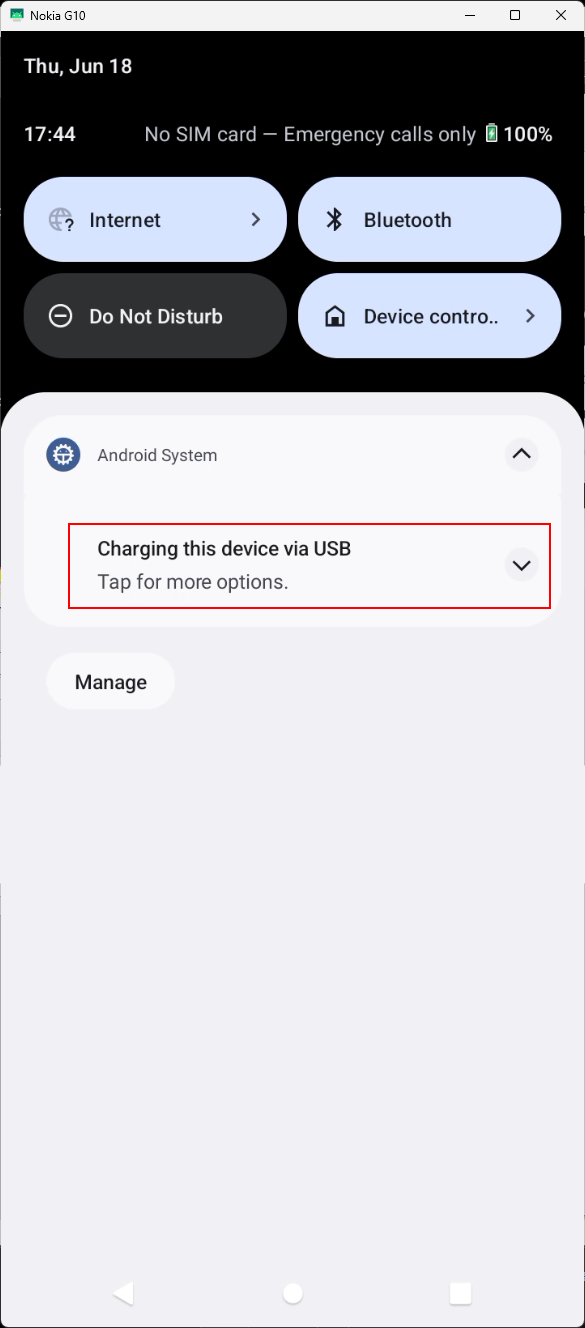 | 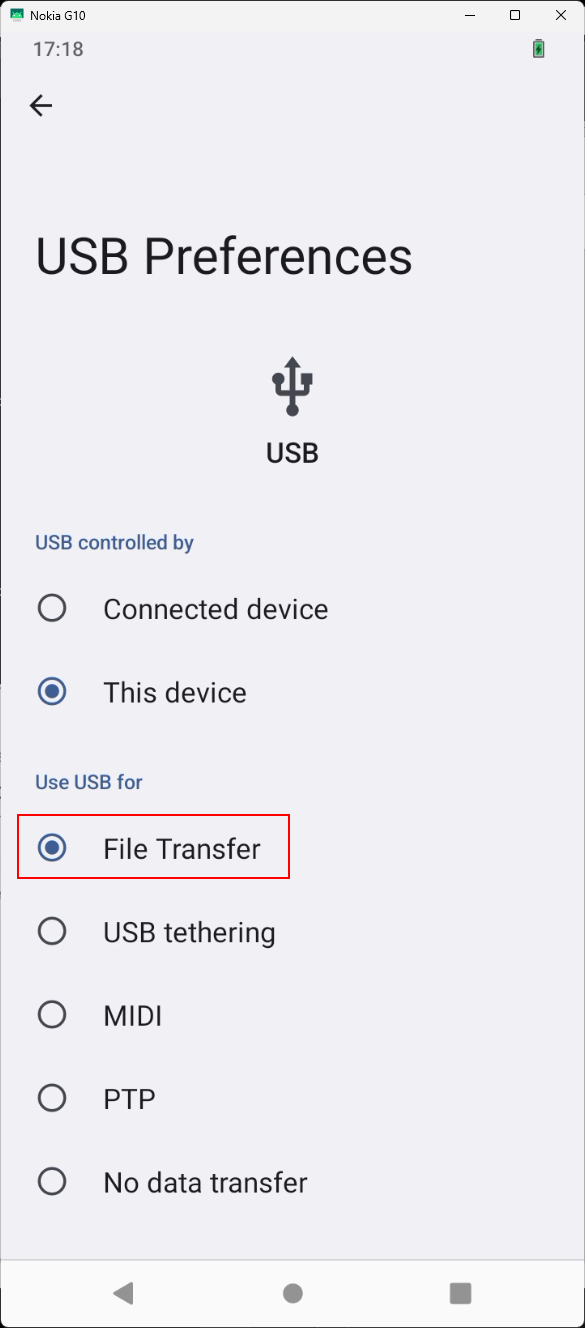 |
If you do not change the connection type to File transfer, the desktop will not be able to see the device.
Step 2 — Export the data on the device
- Open CyberTracker on the device
- Open the project you want to export data from
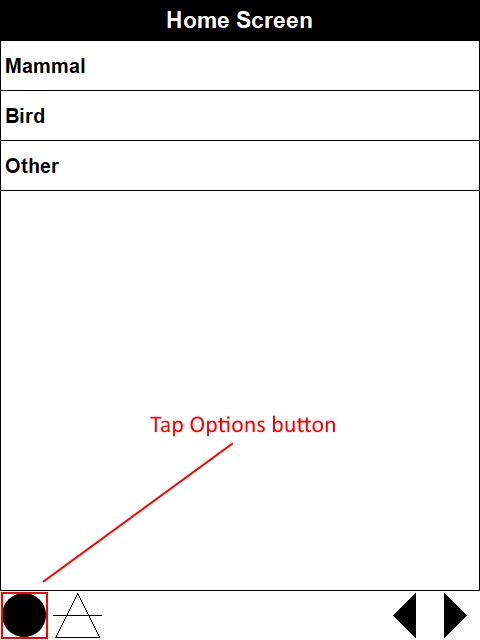
- Tap the Options button
- Go to the Export tab
- Tap the Export button
 | 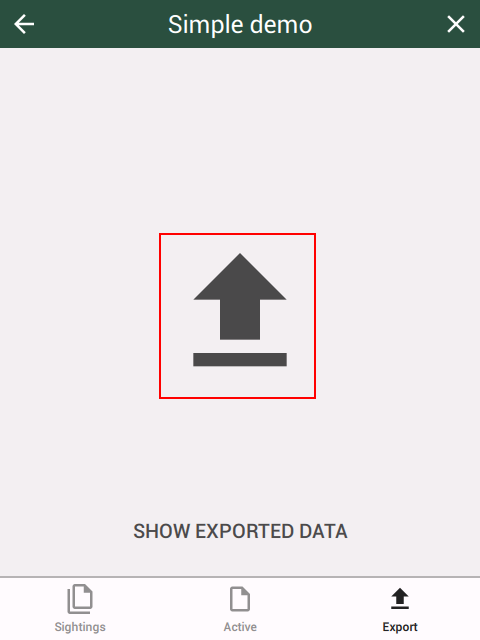 | 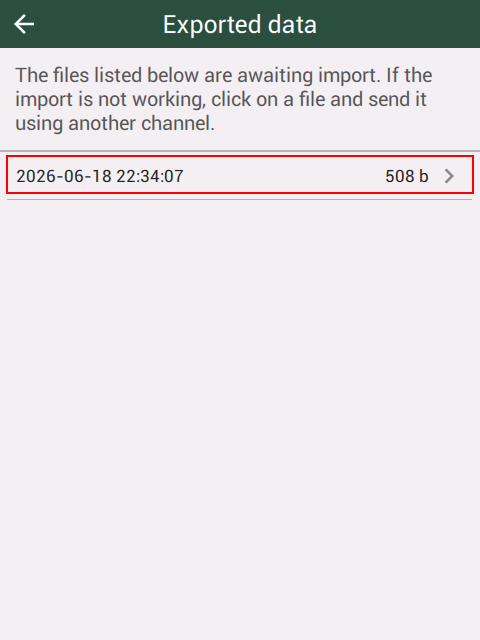 | 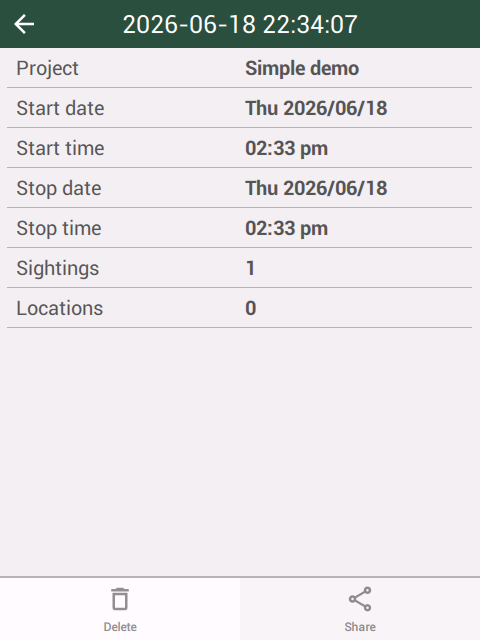 |
If you tap SHOW EXPORTED DATA, then you will see the data file. You can choose to share it as a CTX via another channel as needed.
Alternatively, when there is data available for export, then an extra icon will appear on the project line (on the right). Tapping this will open the Options page described above.
 |
Step 3 — Download the data on the desktop
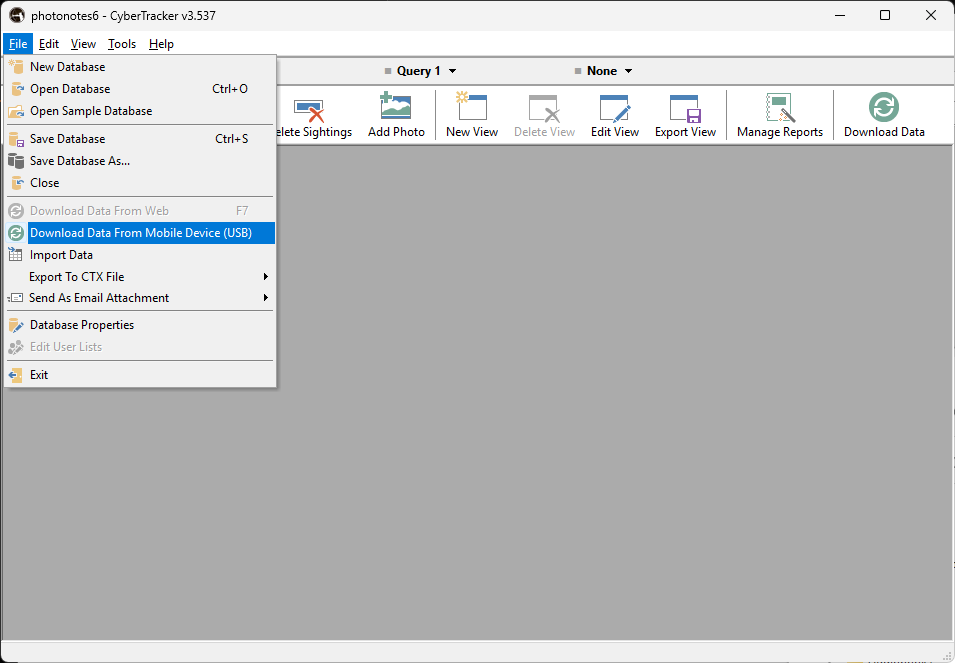
Open CyberTracker on the desktop and click File → Download data over USB. The data exported in the previous step will be downloaded and removed from the device.
 |
Alternate method
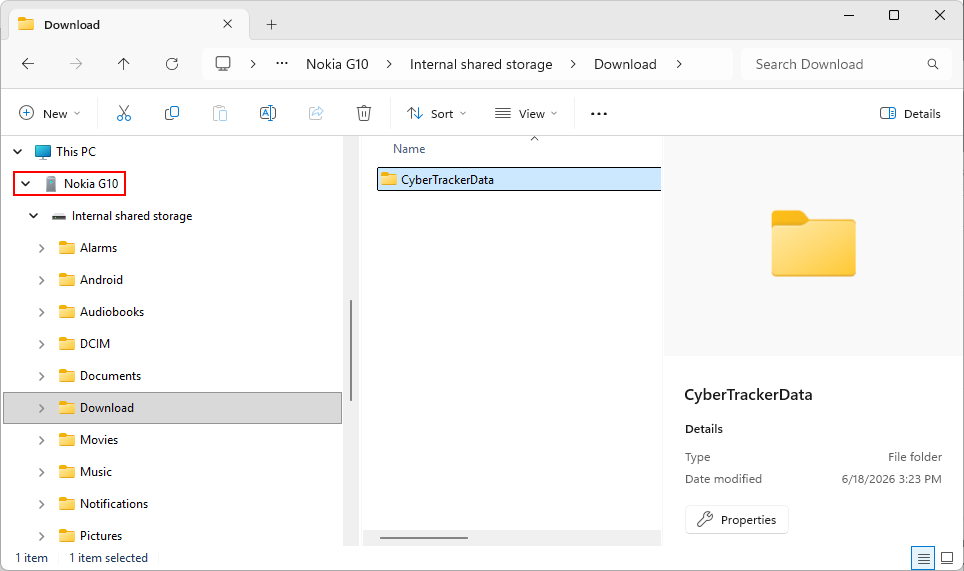
The data is also exported to the Download -> CyberTrackerData folder as CTX files. You can manually copy this data using Windows Explorer and import it into CyberTracker via File->Import data.
 |